Demo
See PrequalReady with a sample company.
Eight real screens, in the order you would use them. Scroll at your own pace; the screen follows and zooms in on what matters.
-
01 / 08
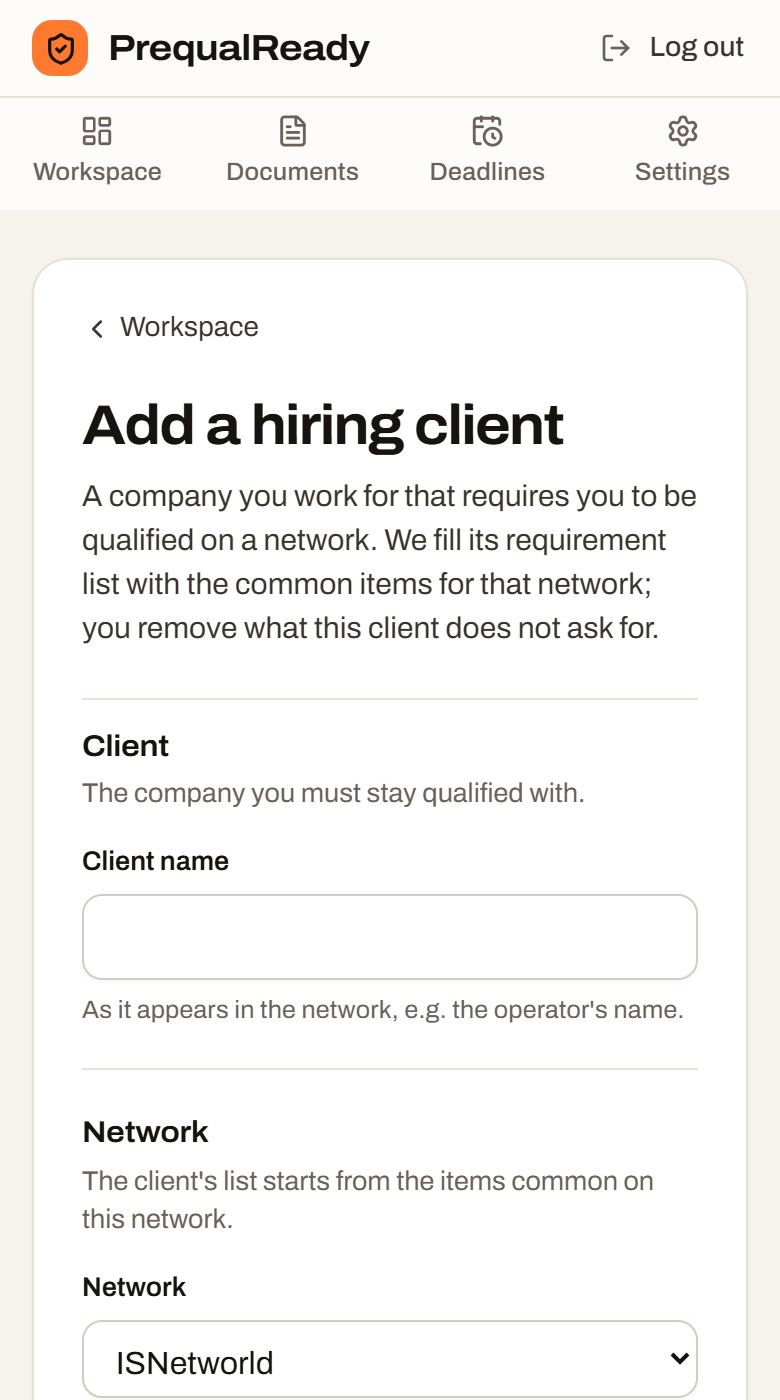
Add a hiring client
Name the client and pick its network. Its list of requirements fills in.
- The list starts from the items common on that network; you remove what this client does not ask for.
- The grade is optional and kept as you entered it. The network decides it.
-
02 / 08
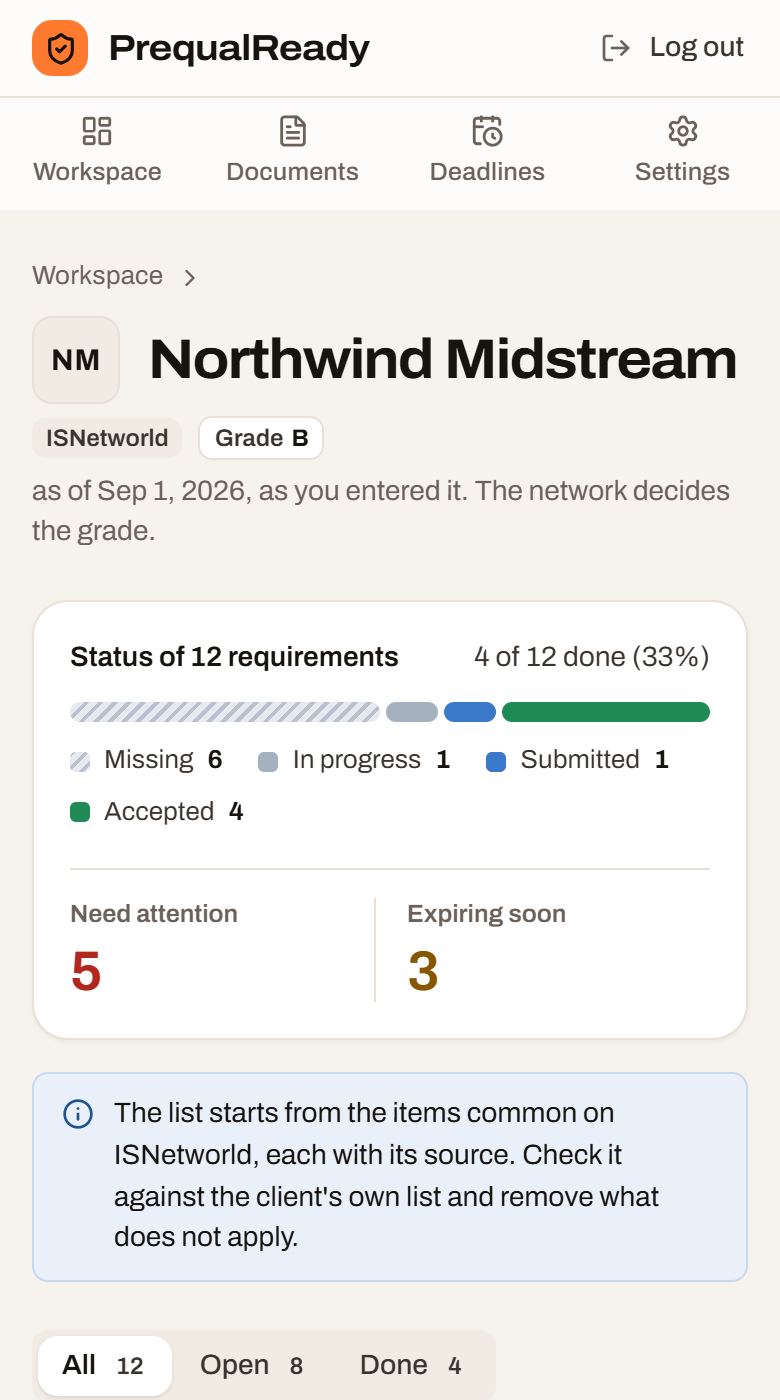
See what the client requires
Progress, what needs attention, and every item with its status and document.
- One bar for every requirement: missing, in progress, submitted, accepted.
- What needs attention and what expires soon, counted for this client.
-
03 / 08
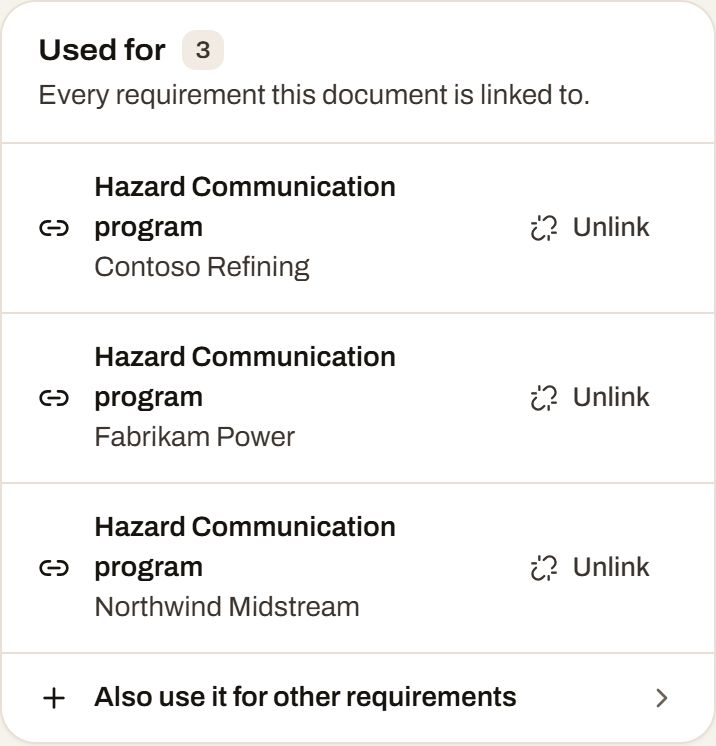
Upload a document once
Link it where it belongs; one tick uses it for the same item in other clients.
- Each requirement shows its source, such as OSHA 1910.1200.
- One tick uses the file for the same item in your other clients.
-
04 / 08
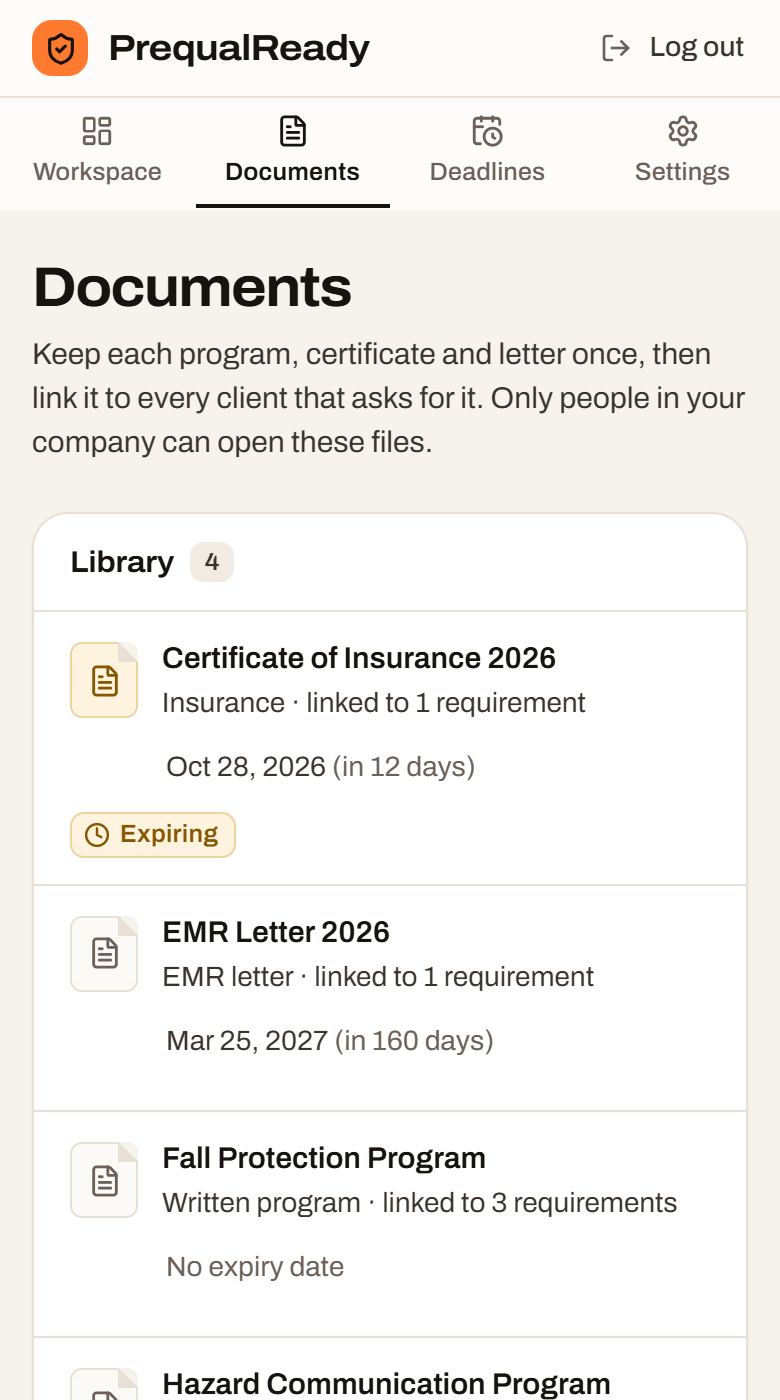
Keep one library
Each file once, with its expiry date and where it is used.
- Each document with its expiry date and the number of requirements it covers.
- Only people in your company can open these files.
-
05 / 08
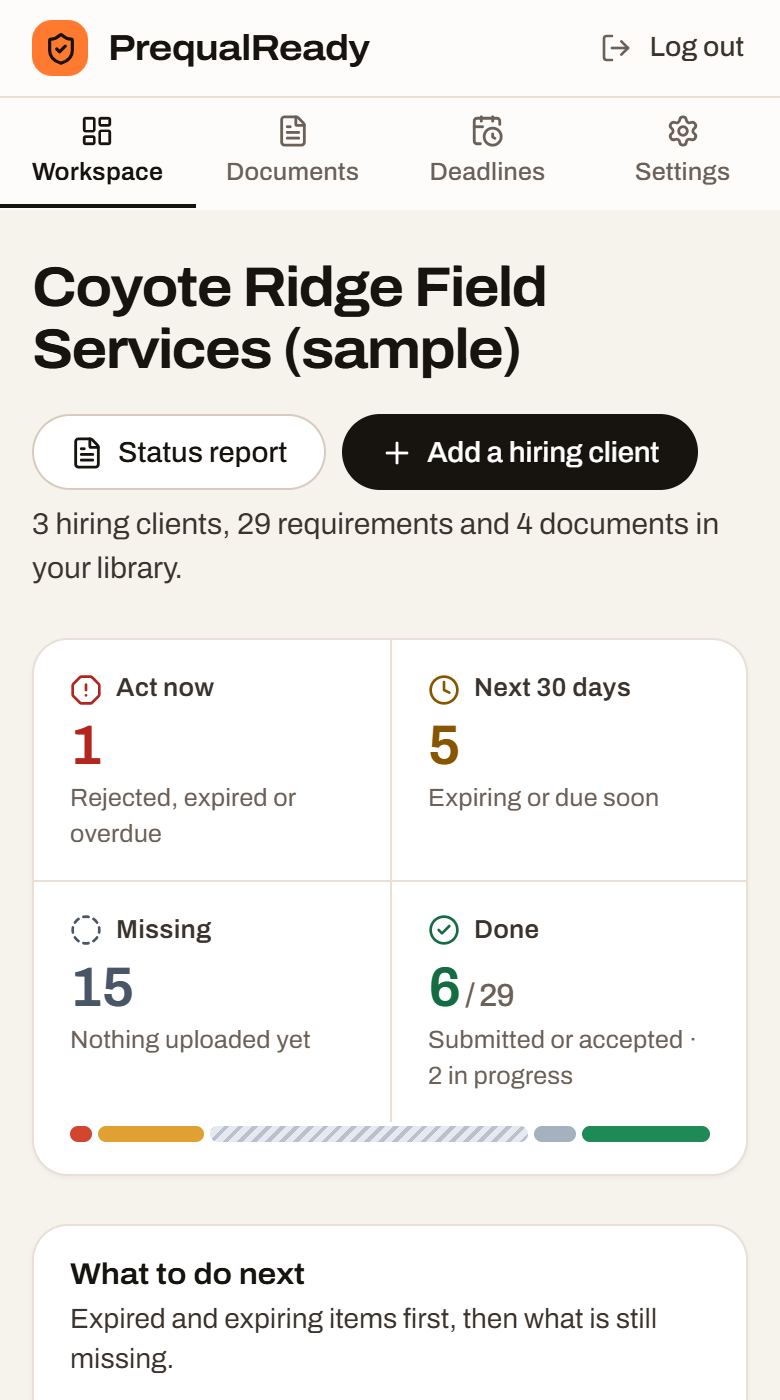
Know what to do next
One ranked list across every client, most urgent first.
- Rejected and expired items first, then what is due in 30 days, then what is missing.
- Every client's progress on the right.
-
06 / 08
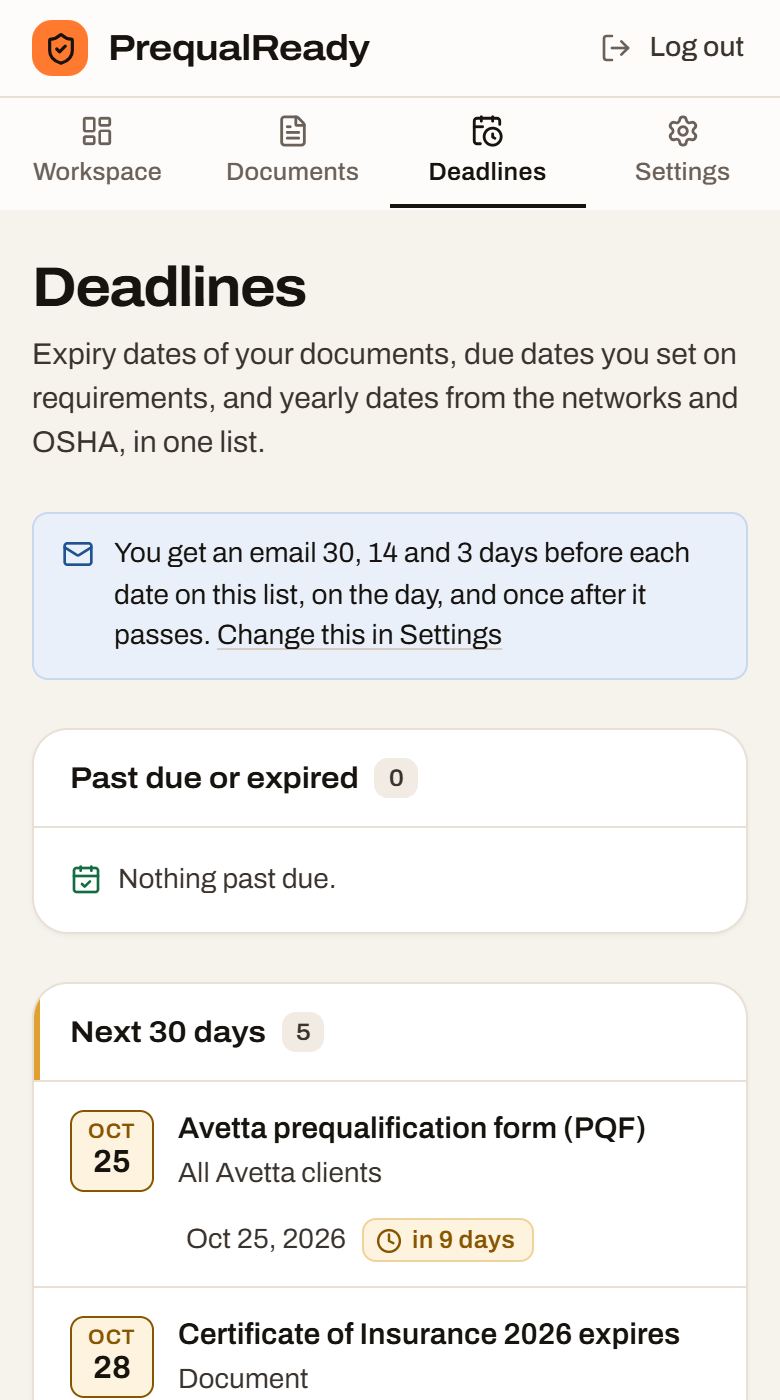
Every date in one list
Past due, the next 30 days, and later this year.
- Document expiries, the due dates you set, and yearly network and OSHA dates.
- An email 30, 14 and 3 days before each date, on the day, and once after.
-
07 / 08
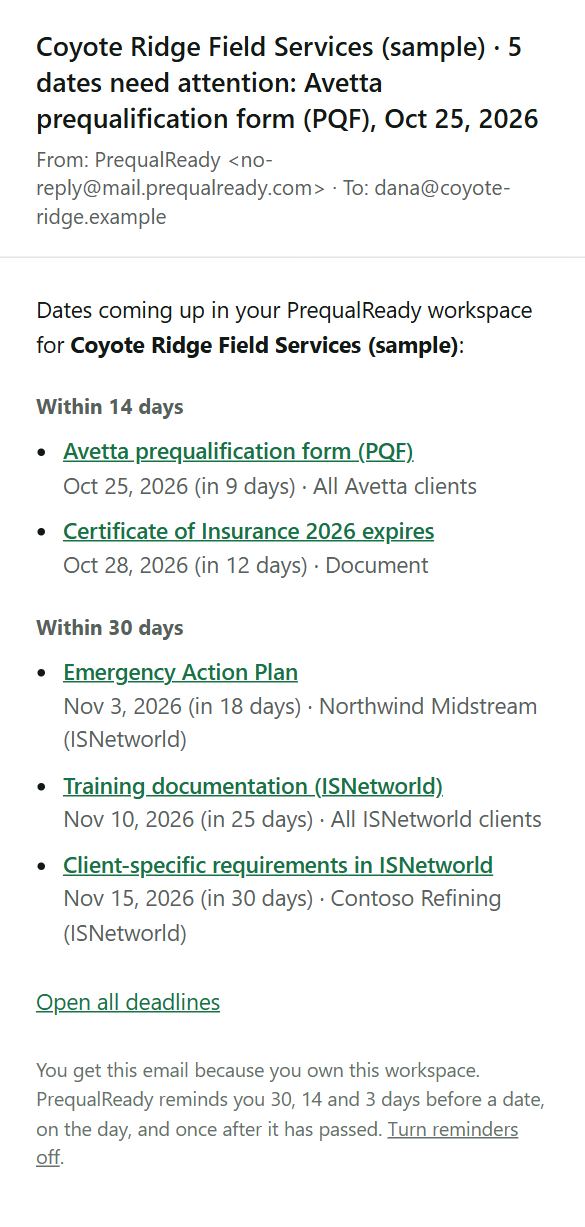
The reminder email
Sent 30, 14 and 3 days before each date, on the day and once after.
- Grouped by how soon: within 14 days, then within 30 days.
- Each line opens the item it is about.
-
08 / 08
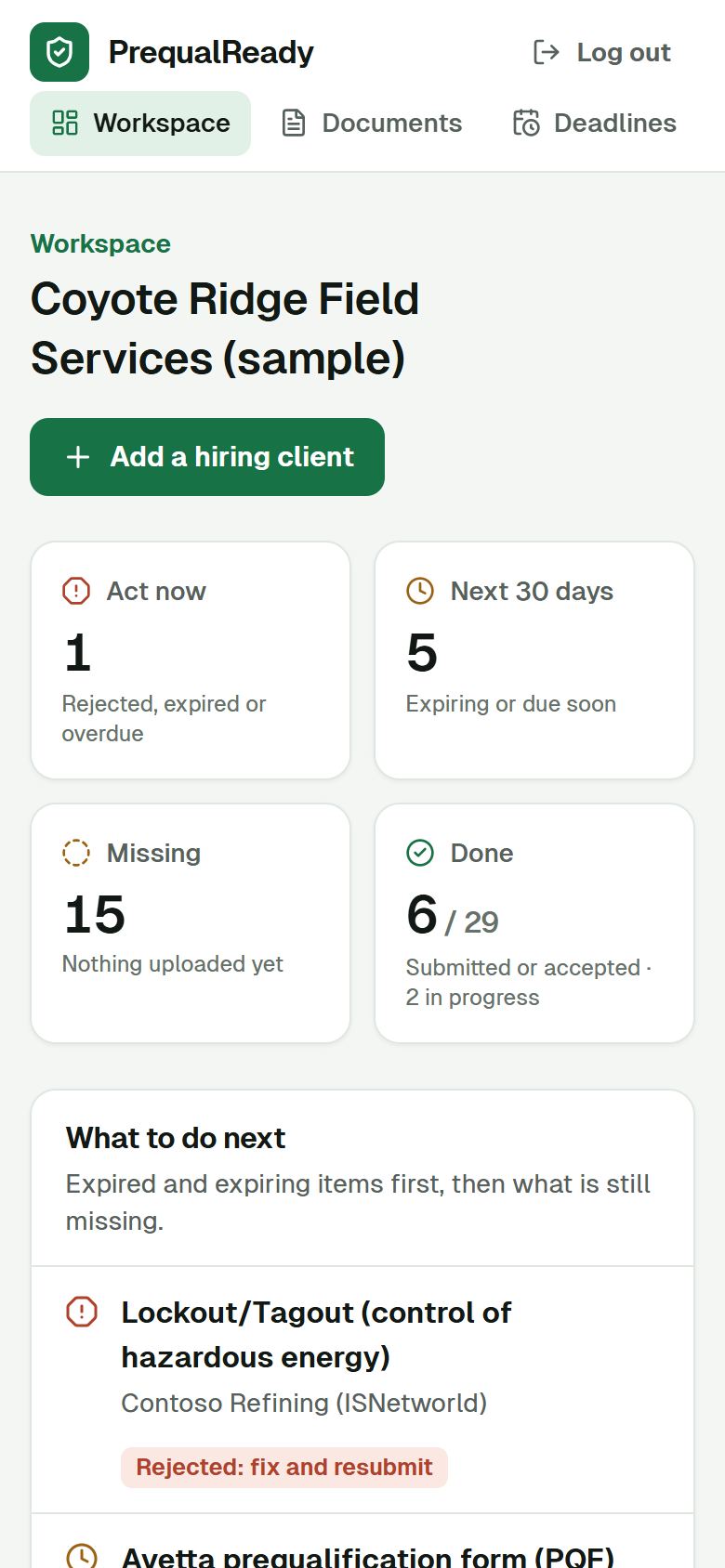
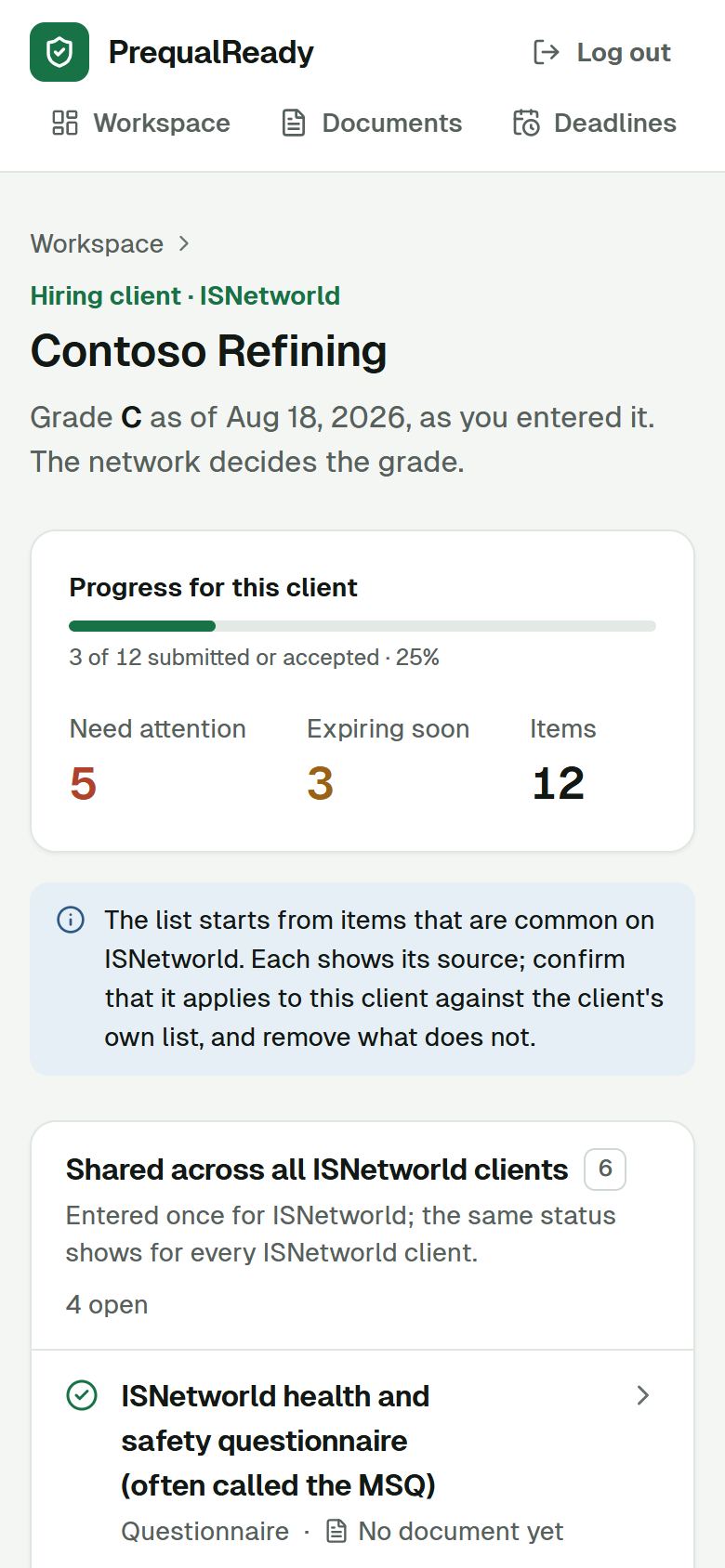
On your phone
The same workspace in a phone browser.
- Nothing to install: it runs in the phone's browser.
- The counts and what to do next come first.
Try it with one of your own clients.
Create an account and add your first hiring client. Free during early access, no card.